
A computer that used to start in a few seconds but now takes several minutes to boot can become frustrating. You may see the Windows logo for a long time, a spinning circle, or a desktop that remains slow after appearing.
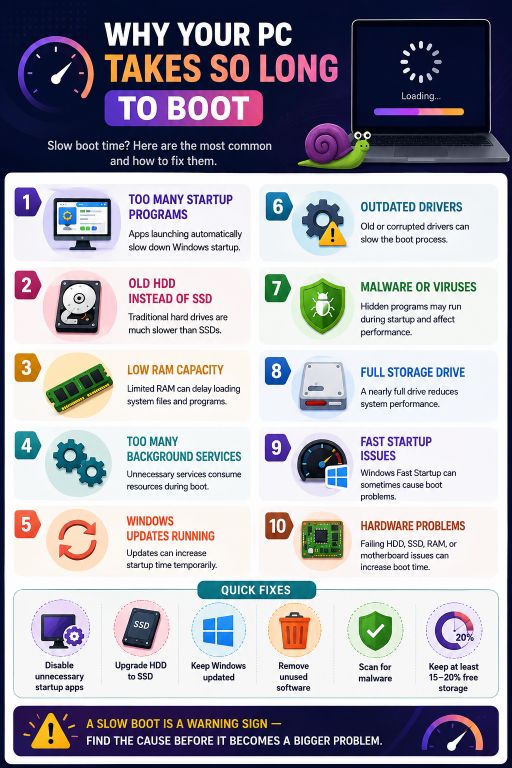
A slow Windows startup does not always mean your computer is failing. Common causes include too many startup programs, an old hard drive, limited RAM, outdated drivers, malware, or low storage.
If you are wondering why your PC takes so long to boot, here are the most common reasons and practical fixes.
1. Too Many Startup Programs
One of the most common reasons for a slow PC startup is having too many applications set to launch automatically.
Programs such as cloud storage tools, messaging apps, game launchers, and update utilities may start as soon as Windows loads. Each one uses system resources, and many startup applications can make the boot process noticeably slower.
Press Ctrl + Shift + Esc to open Task Manager and select Startup apps. Look through the list and disable programs you do not need immediately after signing in. Do not disable Windows components or software you do not recognize without checking what they do first.
2. Your PC Uses an Old HDD
If your computer still uses a traditional hard disk drive (HDD), storage speed may be one of the biggest reasons for slow Windows startup.
HDDs use spinning magnetic disks and mechanical read/write heads. An SSD has no moving parts and can access data much faster.
This is why upgrading from an HDD to an SSD can make an older computer feel dramatically faster. Windows can start more quickly, applications open faster, and files load with less waiting.
If your PC is otherwise in good condition, an SSD upgrade can be one of the most noticeable improvements you can make.
3. Not Enough RAM
RAM temporarily holds the data and programs Windows is actively using. If your computer has limited RAM, Windows may rely more heavily on virtual memory stored on the drive.
This can increase delays when several applications start together.
Low RAM is not always the direct cause of a long boot, but it can contribute to poor performance afterward. Check Task Manager > Performance > Memory to see how much RAM is installed and used.
4. Too Many Background Services
Windows and installed applications run background services for updates, synchronization, hardware management, security, and notifications.
Some are necessary, while others belong to software you rarely use. A large number of unnecessary services can consume CPU, memory, or disk resources during startup.
However, randomly disabling Windows services can create new problems. A safer approach is to remove applications you no longer use and review unnecessary startup programs first.
5. Windows Updates Are Installing
Windows updates can sometimes make startup slower temporarily. During an update, Windows may install files, configure components, clean up older files, or complete changes that require a restart.
If your computer becomes slow only around update time, allow Windows to complete the process and restart normally.
Keeping Windows updated is still important because updates often include security fixes, driver improvements, and reliability changes.
6. Outdated or Corrupted Drivers
Drivers allow Windows to communicate with hardware such as graphics cards, storage controllers, and network adapters.
An outdated, incompatible, or corrupted driver can contribute to startup delays and other system problems. If your PC suddenly started booting slowly after a hardware change or driver update, the driver is worth investigating.
Open Device Manager and look for devices showing warning symbols. You can also install current drivers from your computer or hardware manufacturer’s official website.
7. Malware or Viruses
Malware can run automatically when Windows starts and consume CPU, memory, disk, or network resources.
You may also notice unexpected pop-ups, unfamiliar applications, browser changes, crashes, or unusually high resource usage.
Run a full scan using Windows Security or another trusted security program. Keep Windows and your security software updated. If malware is found, remove it and restart the computer to see whether startup performance improves.
8. Your Storage Drive Is Almost Full
A nearly full C: drive can cause Windows to behave poorly. Windows needs free space for temporary files, updates, caches, virtual memory, and other system operations.
If your system drive has very little free space, you may notice slower performance, failed updates, or applications behaving strangely.
Check Settings > System > Storage to see what is consuming space. Remove unnecessary temporary files, uninstall software you no longer use, and move large personal files to another drive or external storage.
Keeping free space on the system drive gives Windows room for normal operations.
9. Fast Startup Problems
Windows Fast Startup is designed to reduce boot time by saving part of the system state when you shut down.
For many computers, it works well. However, in some situations it can contribute to startup or shutdown problems, particularly when hardware or drivers do not cooperate correctly.
If you notice unusual behavior after shutting down and starting the PC, temporarily disabling Fast Startup can be a useful troubleshooting step.
Open Control Panel > Hardware and Sound > Power Options > Choose what the power buttons do. Select Change settings that are currently unavailable, then review Turn on fast startup.
If disabling it makes no difference, you can turn it back on.
10. Hardware Problems
Sometimes a slow boot is a warning sign of failing hardware.
A hard drive or SSD developing errors can cause Windows to spend a long time trying to read files. Faulty RAM, storage controller problems, or other hardware issues can also lead to crashes and startup delays.
If your computer makes unusual sounds, freezes frequently, shows disk errors, or takes progressively longer to start, check the health of the storage drive and run Windows Memory Diagnostic.
Back up important files before troubleshooting a drive that may be failing. A backup is especially important if slow booting is accompanied by missing files or repeated disk errors.
How to Make Windows Boot Faster
If you want to improve Windows startup time, start with the simplest changes. Disable unnecessary startup applications, remove software you no longer use, free up storage space, and keep Windows and drivers updated.
If the computer still boots slowly, check whether it uses an HDD and consider an SSD upgrade. Also check RAM usage and run a malware scan.
Avoid installing “PC speed booster” programs that promise instant results. Many are unnecessary and some can create additional problems.
How to Find the Real Cause of a Slow Boot
The best approach is to make one change at a time and observe the result.
Task Manager shows which applications and resources are active after Windows starts. The Startup apps section also shows startup impact.
If the problem is severe, Event Viewer, reliability information, and hardware diagnostics can provide additional clues. A sudden change in boot time may point to a new application, update, driver, malware infection, or hardware problem.
Final Thoughts
There are many possible answers to the question, “Why does my PC take so long to boot?” The cause could be something as simple as too many startup applications or as serious as a failing storage drive.
Start with the easy checks: review startup programs, free up space, scan for malware, and make sure Windows and drivers are up to date. If the system still takes a long time to start, look at the storage drive and RAM.
For older computers using an HDD, moving to an SSD can provide one of the biggest improvements in Windows startup performance. If slow boot times are accompanied by crashes, disk errors, or missing files, back up your data and investigate the hardware before the problem gets worse.
Also Read: