

Google Search is something most of us use every day. We type a few words into the search box, press Enter, and usually find what we need. But there is a lot more to Google Search than simply entering keywords.
If you know a few simple search operators and techniques, you can make your searches much more precise. Instead of going through page after page of unrelated results, you can tell Google what kind of information you are looking for, which websites you want to search, or which words you want to leave out.
These Google Search tricks are useful for students, professionals, researchers, bloggers, developers, and everyday internet users. They don’t require any special software or technical knowledge. You simply add a symbol or operator to your search query.
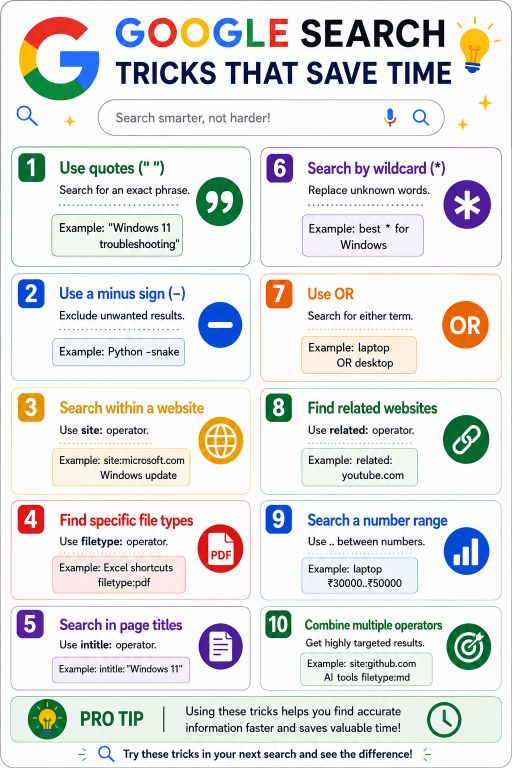
Here are ten useful Google search tips and tricks that can help you find information faster.
1. Use Quotation Marks for an Exact Phrase
If you’re searching for a specific phrase, put it inside quotation marks.
For example:
"Windows 11 troubleshooting"This tells Google that you are looking for that particular phrase rather than separate pages that contain the words in different places.
This can be especially useful when searching for an error message, product name, song title, technical term, or sentence.
For example, if you received a specific Windows error, searching for:
"0x0000001A" Windowscan be more useful than simply searching for Windows memory errors.
Google officially supports quotation marks for searching for an exact word or phrase.
2. Use the Minus Sign to Exclude Results
Sometimes Google gives you results about a topic you don’t actually want. The minus sign can help remove unwanted terms.
For example:
Python -snakeThis tells Google to search for Python while excluding results related to snakes.
You can use this technique when a word has multiple meanings. For example, if you’re searching for information about Apple computers rather than the fruit, you could try:
Apple computers -fruitYou can also exclude a particular website:
Windows 11 -site:microsoft.comThis is useful when you already have too many results from one domain and want to explore other sources. Google supports the minus operator for excluding words and sites from searches.
3. Search Within a Specific Website
One of the most useful Google search operators is site:.
It allows you to search for information only within a particular website or domain.
For example:
site:microsoft.com Windows updateInstead of searching the entire web, Google focuses on pages from Microsoft.
You can also search a specific website for a particular error:
site:support.microsoft.com "Windows Update" errorThis is extremely useful when a website has a poor internal search feature or when you want information from a trusted source.
You can also search entire domain types, such as:
site:.gov cybersecurityGoogle documents the site: operator as a way to limit results to a specific website or domain.
4. Find Specific File Types
If you’re looking for a PDF, presentation, spreadsheet, or another specific type of document, use the filetype: operator.
For example:
Excel shortcuts filetype:pdfGoogle will look for PDF documents related to Excel shortcuts.
You can also search for:
Windows 11 guide filetype:pdfor:
network security filetype:pptThis trick is particularly helpful when you’re researching a topic and want downloadable documents instead of normal web pages.
Common file types include:
pdfdocdocxxlsxlsxpptpptx
Google currently lists filetype: as a supported search operator for finding specific types of documents.
5. Search for Words in Page Titles
The intitle: operator can help when you want a search term to appear in the title of a webpage.
For example:
intitle:"Windows 11"This is useful when you’re specifically looking for articles or pages focused on a particular subject.
You can also combine operators:
intitle:"Windows 11" troubleshootingThis can help narrow down broad searches when normal keyword searches return too many loosely related pages.
For research and SEO work, title-focused searches can also help you understand what types of pages already exist for a particular topic.
6. Use the Asterisk as a Wildcard
The asterisk * can be useful when you’re trying to remember part of a phrase or want to experiment with an unknown word.
For example:
"best * for Windows"The asterisk represents an unknown part of the phrase.
This can be useful when you’re trying different variations of a search or don’t remember the exact wording of something.
However, don’t expect the wildcard to behave like a general-purpose placeholder in every Google search. Search behavior can vary depending on the query, so it is better to treat this as an additional search technique rather than relying on it for exact results.
7. Use OR to Search for Alternatives
If you’re interested in more than one possibility, use OR between the terms.
For example:
laptop OR desktopThis tells Google that you are interested in either term.
You can use this when different words describe the same type of information.
For example:
Windows 11 OR Windows 10 troubleshootingYou can also combine OR with other operators for more targeted searches.
Google supports OR for combining alternative search expressions.
8. Find Related Websites
The related: operator can be useful when you’ve found a website you like and want to discover similar websites.
For example:
related:youtube.comThis can help you discover websites that Google considers related to the domain you’re searching.
This technique can be useful when researching competitors, finding alternative resources, or discovering websites covering a similar subject.
Keep in mind that operators don’t always return exhaustive results, so you shouldn’t assume that every relevant website will appear.
9. Search Within a Number Range
If you’re looking for something within a particular price or numerical range, use two periods between the numbers.
For example:
laptop ₹30000..₹50000This can help narrow your search to laptops around that price range.
You can also use number ranges for years or other numerical information, depending on the type of search.
For example:
Windows laptops 2024..2026The .. operator is documented by Google as a way to search within a range of numbers.
10. Combine Multiple Search Operators
The real power of Google search operators comes from combining them.
Instead of searching for something broad like:
AI toolsyou could search for:
site:github.com AI tools filetype:mdNow you’re asking Google to find Markdown documents related to AI tools specifically on GitHub.
Another example is:
site:microsoft.com "Windows 11" filetype:pdfThis combines an exact phrase, a specific website, and a specific file type.
Combining operators is particularly useful when you’re doing technical research, finding documentation, researching a topic for an article, or looking for a particular document.
Why Google Search Tricks Are Useful
The main benefit of these techniques is simple: they reduce unnecessary results.
A normal search can sometimes produce millions of pages, many of which aren’t relevant to what you’re actually looking for. Search operators allow you to add additional instructions to your query.
For example, instead of searching for:
Windows update guideyou can search:
site:microsoft.com "Windows Update" filetype:pdfThe second search is much more specific.
You don’t need to use advanced operators for every search. In fact, normal natural-language searches are often enough. But when you can’t find what you’re looking for, these tricks can save a considerable amount of time.
Final Thoughts
You don’t need to be a technical expert to become better at Google Search. Learning a handful of simple operators can make a noticeable difference in how quickly you find useful information.
Using quotation marks helps you find exact phrases, the minus sign removes unwanted results, site: searches a specific website, and filetype: helps locate particular documents. Other techniques, such as OR, number ranges, and combining multiple operators, give you even more control over your searches.
The important thing is to experiment. Try changing a normal search into a more specific query and compare the results. Once these Google Search tricks become familiar, you’ll spend less time scrolling through irrelevant pages and more time finding the information you actually need.
Also Read: