
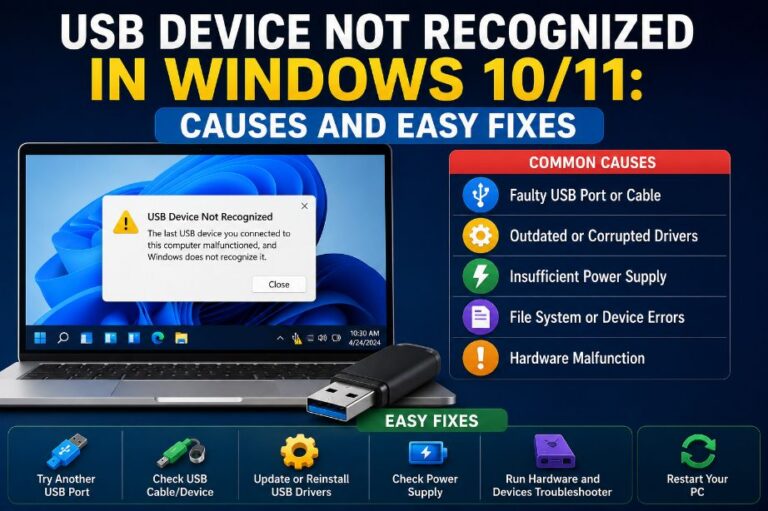
Seeing the “USB Device Not Recognized” error in Windows can be frustrating, especially when you need to access important files on a USB flash drive, external hard drive, keyboard, or other USB device. The error usually appears with a message like:
“USB Device Not Recognized. One of the USB devices attached to this computer has malfunctioned, and Windows does not recognize it.”
In many cases, the problem isn’t with the USB device itself. It could be caused by a temporary Windows glitch, outdated drivers, power management settings, or even a faulty USB cable.
This guide explains the most common causes of the error and provides step-by-step solutions to help you get your USB device working again.
Why Does Windows Say “USB Device Not Recognized”?
Windows displays this error when it cannot properly identify or communicate with a connected USB device. The operating system may fail to load the correct driver, detect the hardware, or establish a stable connection.
Common reasons include:
- Corrupted or outdated USB drivers
- Damaged USB ports
- Faulty USB cable
- Windows update issues
- Insufficient power supplied to the USB device
- Hardware failure
- Temporary system glitches
Fortunately, many of these problems can be resolved in just a few minutes.
1. Reconnect the USB Device
The simplest solution is often the most effective.
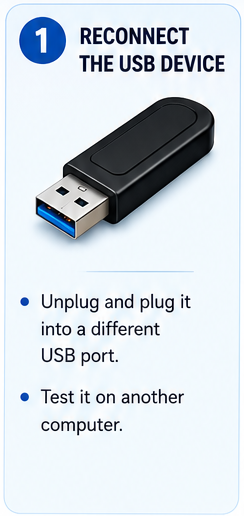
Disconnect the USB device and wait a few seconds before plugging it back in. If possible, connect it to a different USB port on your computer.
If the device still isn’t recognized, test it on another computer. This helps determine whether the problem is with the device or your PC.
2. Restart Your Computer
A restart clears temporary system errors and reloads USB drivers.
Many USB detection problems occur because Windows fails to initialize the device correctly after sleep mode or a software update.
Before trying more advanced fixes, restart your computer and reconnect the device.
3. Update or Reinstall USB Drivers
Corrupted or outdated drivers are one of the most common causes of USB recognition problems.
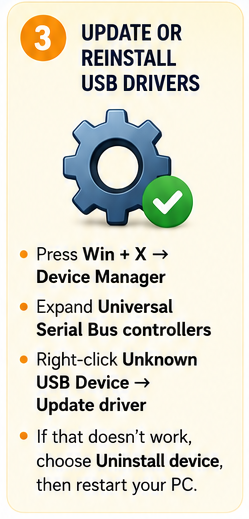
Update the Driver
- Press Win + X and select Device Manager.
- Expand Universal Serial Bus controllers.
- Look for Unknown USB Device or any device with a yellow warning icon.
- Right-click it and choose Update driver.
- Follow the on-screen instructions.
Reinstall the Driver
If updating doesn’t help:
- Right-click the affected USB device.
- Select Uninstall device.
- Restart your computer.
- Windows will automatically reinstall the required drivers.
4. Disable USB Power Saving
Windows sometimes turns off USB ports to save power, which may prevent devices from reconnecting properly.
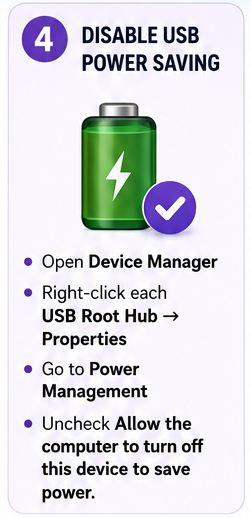
Steps
- Open Device Manager.
- Expand Universal Serial Bus controllers.
- Right-click each USB Root Hub.
- Select Properties.
- Open the Power Management tab.
- Uncheck Allow the computer to turn off this device to save power.
- Click OK.
Repeat these steps for each USB Root Hub listed.
5. Install Windows Updates
Microsoft regularly releases updates that improve hardware compatibility and fix driver-related issues.
To check for updates:
- Open Settings.
- Go to Windows Update.
- Click Check for updates.
- Install any available updates.
- Restart your computer.
Keeping Windows updated also ensures you have the latest USB and chipset drivers.
6. Check for Physical Damage
Sometimes the problem is hardware-related rather than software.
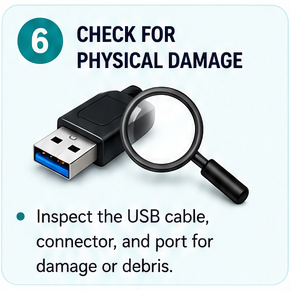
Inspect:
- USB connector
- USB cable
- USB port
- External drive enclosure
Look for bent connectors, loose ports, damaged cables, or dirt inside the USB port.
If necessary, clean the port carefully using compressed air.
7. Try Another USB Cable or Power Source
This step is especially important for external hard drives.
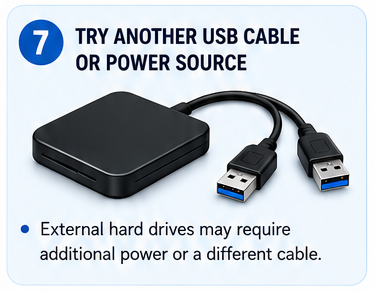
Some portable drives require more power than a single USB port can provide.
Try:
- A different USB cable
- Another USB port
- A powered USB hub
- An external power adapter (if supported)
Replacing a damaged cable often solves intermittent connection issues.
Additional Troubleshooting Tips
If the error continues, try these additional solutions.
Run the Hardware Troubleshooter
Windows includes built-in troubleshooting tools that can detect common hardware issues.
Although newer Windows versions have removed the dedicated Hardware Troubleshooter from Settings, running Windows Update and Device Manager diagnostics can still identify many problems.
Update Chipset Drivers
USB controllers depend on motherboard chipset drivers.
Visit your computer or motherboard manufacturer’s website and install the latest chipset drivers available for your model.
Disable Fast Startup
Fast Startup can occasionally prevent USB devices from initializing correctly.
To disable it:
- Open Control Panel.
- Select Power Options.
- Click Choose what the power buttons do.
- Disable Turn on Fast Startup.
- Save the changes and restart your PC.
Check Device Manager for Errors
Open Device Manager and look for:
- Yellow warning symbols
- Unknown devices
- Disabled USB controllers
Resolving these issues often restores USB functionality.
Common Causes of USB Recognition Problems
Here are the most frequent reasons why Windows cannot detect a USB device:
| Cause | Description |
|---|---|
| Corrupted USB drivers | Windows cannot load the required driver correctly. |
| Faulty USB device | The flash drive or external device may be damaged. |
| Bad USB cable | Damaged cables interrupt communication. |
| Damaged USB port | Physical damage prevents proper connection. |
| Outdated Windows | Older system files may not support newer hardware. |
| Power management settings | Windows disables USB ports to save power. |
| Insufficient power | External drives may require additional power. |
What If the USB Device Still Isn’t Recognized?
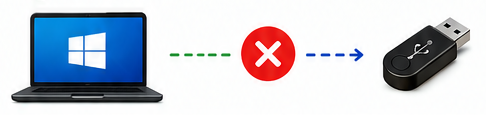
If you’ve tried all the solutions above and the device still isn’t detected, connect it to another computer.
If it works on another PC
The problem is likely with your Windows installation, drivers, or USB hardware.
If it doesn’t work anywhere
The USB device itself may have failed.
This is especially common with:
- Older USB flash drives
- External hard drives
- USB hubs
- Damaged memory cards
- Low-quality USB cables
How to Prevent USB Problems
A few simple habits can help avoid USB errors in the future:
- Always use Safely Remove Hardware before unplugging storage devices.
- Keep Windows updated.
- Install motherboard and chipset driver updates.
- Avoid forcing USB connectors into ports.
- Replace damaged USB cables promptly.
- Use quality USB hubs for multiple devices.
- Keep USB ports clean and free of dust.
Frequently Asked Questions
Why does my USB device keep disconnecting?
This usually happens because of a faulty cable, loose USB port, insufficient power, or Windows power management settings.
Can outdated drivers cause USB recognition problems?
Yes. Corrupted or outdated USB and chipset drivers are among the most common reasons Windows cannot recognize a connected USB device.
Why does my USB work on another computer?
If the device works on another PC, the issue is likely with your computer’s drivers, USB ports, or Windows configuration rather than the USB device itself.
Does restarting the PC really help?
Yes. Restarting reloads USB drivers and clears temporary system errors that can prevent Windows from detecting connected devices.
Can a damaged USB port cause this error?
Absolutely. Bent pins, dust, debris, or a physically damaged USB port can prevent proper communication between the device and your computer.
Final Thoughts
The “USB Device Not Recognized” error is usually caused by driver problems, power settings, outdated software, or hardware issues. In most cases, reconnecting the device, restarting Windows, updating USB drivers, or disabling USB power saving is enough to restore normal operation.
If the device still isn’t recognized after testing it on another computer, the hardware itself may have reached the end of its lifespan and may need to be replaced.
Also Read: