
If you’ve ever opened the C: drive on your Windows computer, you’ve probably noticed two folders that look almost identical: Program Files and Program Files (x86). Many Windows users wonder why there are two folders instead of one and whether it’s safe to move applications between them.
At first glance, these folders may seem confusing, but they serve an important purpose. Windows separates 64-bit and 32-bit applications to improve compatibility, prevent software conflicts, and ensure programs run correctly.
In this guide, we’ll explain the difference between Program Files and Program Files (x86), why Windows keeps them separate, and answer some of the most common questions about these folders.
What Is the Program Files Folder?
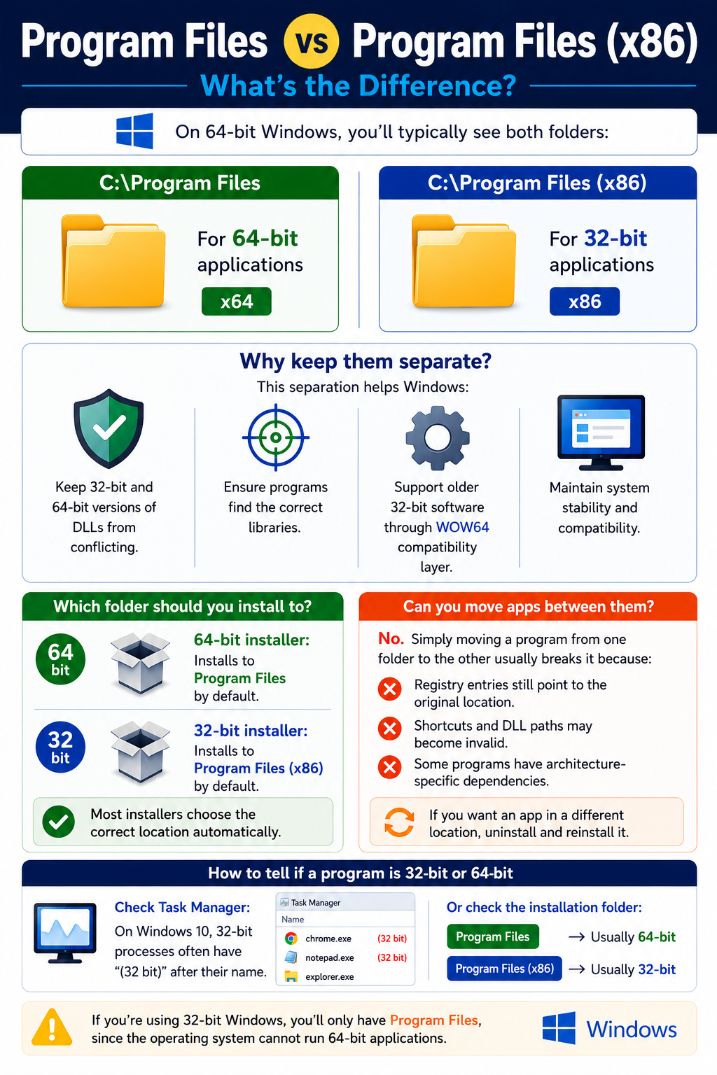
The Program Files folder is the default location where Windows installs 64-bit applications on a 64-bit version of Windows.
You can usually find it here:
C:\Program FilesMost modern software is designed for 64-bit systems because they can use more memory, perform better, and take advantage of modern processors.
Examples of applications commonly installed in this folder include:
- Microsoft Office (64-bit version)
- Adobe Photoshop (64-bit)
- Google Chrome (64-bit)
- Visual Studio
- Steam
- Most modern games
When you install a 64-bit application, the installer automatically places it inside the Program Files folder unless you choose another location.
What Is Program Files (x86)?
The Program Files (x86) folder is reserved for 32-bit applications running on a 64-bit version of Windows.
Its default location is:
C:\Program Files (x86)Although 32-bit software is older, many applications are still developed in 32-bit versions because they remain compatible with both older and newer computers.
Windows keeps these applications separate from 64-bit software to avoid compatibility issues.
Common examples include:
- Older business software
- Legacy games
- Older versions of web browsers
- Utility programs
- Drivers and supporting tools
If a program installer is 32-bit, Windows usually installs it into Program Files (x86) automatically.
Why Does Windows Have Two Program Files Folders?
The two folders exist because Windows must support both 64-bit and 32-bit software at the same time.
Many users still rely on older applications that were originally designed for 32-bit versions of Windows. Rather than forcing those applications to be rewritten, Microsoft built compatibility into 64-bit Windows.
Keeping the applications in separate folders helps Windows know which files belong to which architecture.
This separation also prevents different versions of system libraries (DLL files) from conflicting with one another.
Without this organization, many older programs would stop working correctly.
What Does “x86” Mean?
Many people assume “x86” refers to Windows 8 or another version of Windows, but that’s not the case.
The term x86 refers to the 32-bit processor architecture that originated with Intel’s 8086 series of processors. Over time, “x86” became the standard name for 32-bit software.
Similarly, x64 refers to the 64-bit architecture, which supports more memory and offers better performance for modern applications.
So when you see Program Files (x86), it simply means the folder for 32-bit applications.
Why Keep 32-bit and 64-bit Programs Separate?
Separating the folders helps Windows manage applications more efficiently.
Prevents DLL Conflicts
Many programs rely on shared system files called DLLs (Dynamic Link Libraries).
A 32-bit application requires 32-bit DLL files, while a 64-bit application requires 64-bit DLL files.
Keeping programs in separate folders reduces the risk of loading the wrong library.
Improves Compatibility
Many older applications continue to work on modern versions of Windows because Microsoft separates their files and provides compatibility support.
Without this separation, many legacy programs would fail to start.
Makes Software Installation Easier
Software installers don’t need users to decide where programs should be installed.
The installer automatically detects whether it’s a 32-bit or 64-bit application and selects the correct folder.
Keeps Windows Organized
Separating applications by architecture makes it easier for Windows to locate files, load the correct libraries, and maintain system stability.
What Is WOW64?
One reason 32-bit programs continue to work on modern Windows computers is a compatibility feature called WOW64, which stands for Windows-on-Windows 64-bit.
WOW64 acts as a compatibility layer that allows most 32-bit applications to run on a 64-bit operating system without requiring any changes.
When you launch a 32-bit application, WOW64 automatically handles communication between the application and the 64-bit operating system.
This process is completely automatic, and most users never notice it’s happening.
Which Folder Should You Install Programs In?
For most users, the answer is simple:
Let the installer choose.
Software installers automatically detect whether the application is 32-bit or 64-bit.
Typically:
- 64-bit programs install into Program Files
- 32-bit programs install into Program Files (x86)
There’s usually no need to manually change the installation folder unless the software specifically recommends it.
Can You Move Programs Between These Folders?
Many users wonder whether they can simply drag a program from Program Files (x86) into Program Files to convert it into a 64-bit application.
The answer is no.
Applications aren’t just a collection of files inside one folder. During installation, Windows creates registry entries, shortcuts, configuration files, and references to the program’s location.
Moving the folder manually usually causes the application to stop working.
Some common problems include:
- Missing registry entries
- Broken shortcuts
- Missing DLL references
- Incorrect file paths
- Application startup errors
If you want to install a program in a different location, it’s always better to uninstall it and then reinstall it properly.
How Can You Tell If a Program Is 32-bit or 64-bit?
There are several easy ways to check.
Check the Installation Folder
If the program is installed in:
C:\Program Files
it’s usually a 64-bit application.
If it’s installed in:
C:\Program Files (x86)
it’s usually a 32-bit application.
Although there are a few exceptions, this is generally the easiest method.
Check Task Manager
On some versions of Windows, Task Manager displays “(32 bit)” next to running 32-bit processes.
To check:
- Press Ctrl + Shift + Esc.
- Open Task Manager.
- Look at the Processes tab.
If a program shows (32 bit) after its name, it’s running as a 32-bit application.
Check the Software’s Information
Some applications display their architecture in the About window or installation details.
For example, many installers clearly state whether you’re downloading the 32-bit or 64-bit version.
What Happens on a 32-bit Version of Windows?
If you’re using a 32-bit version of Windows, you’ll only see:
C:\Program FilesThere won’t be a Program Files (x86) folder because a 32-bit operating system cannot run native 64-bit applications.
Since only 32-bit programs are supported, Windows doesn’t need two separate folders.
Today, most new computers ship with 64-bit Windows, so this situation has become less common.
Should You Delete Either Folder?
No.
Both Program Files and Program Files (x86) are essential Windows system folders.
Deleting either folder can prevent installed applications from working correctly and may even make Windows unstable.
Even if one folder appears mostly empty, it should never be removed manually.
If you want to free up storage space, uninstall programs using:
Settings → Apps → Installed Apps
or
Control Panel → Programs and Features
This ensures Windows removes applications safely.
Common Myths About Program Files and Program Files (x86)
There are several misconceptions about these folders.
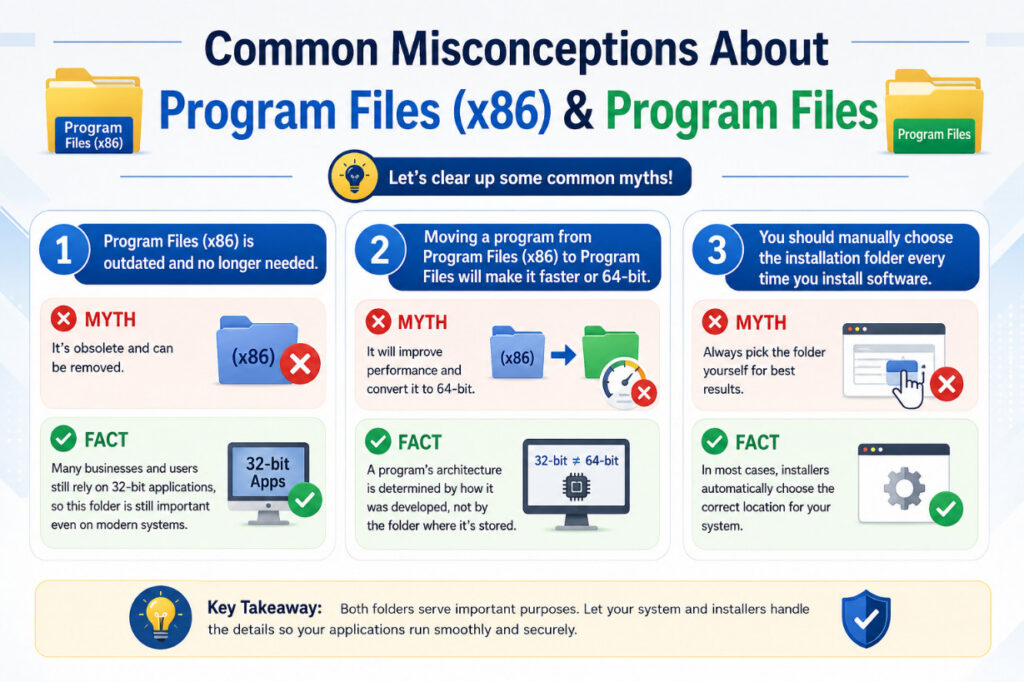
One common myth is that Program Files (x86) is outdated and no longer needed. In reality, many businesses and users still rely on 32-bit applications, making the folder important even on modern systems.
Another misconception is that moving a program from Program Files (x86) to Program Files will make it run faster or turn it into a 64-bit application. This isn’t true. A program’s architecture is determined by how it was developed, not by the folder where it’s stored.
Some users also believe they should manually choose the installation folder every time they install software. In most cases, this isn’t necessary because installers automatically select the correct location.
Final Thoughts
The presence of both Program Files and Program Files (x86) often confuses Windows users, but the reason is actually quite simple. Windows uses these folders to separate 64-bit and 32-bit applications, helping maintain compatibility, organize system files, and prevent conflicts between different software architectures.
For most users, there’s nothing special you need to do. Let software installers choose the installation location, avoid moving programs manually between the folders, and never delete these directories. Windows is designed to manage them automatically, ensuring both modern 64-bit applications and older 32-bit software continue to run smoothly.
Also Read: