
Have you ever tried to delete, rename, move, or edit a file in Windows only to see a message saying “The action can’t be completed because the file is open in another program”?
The file may appear completely normal. You may not even have the application that created it open. Yet Windows refuses to let you modify or delete it.
This behavior is usually related to a file lock.
A file lock is a mechanism that helps Windows and applications coordinate access to files. It prevents multiple programs from making conflicting changes at the same time and helps protect files from accidental corruption.
Understanding what is a file lock can make these frustrating Windows messages much easier to understand.
What Is a File Lock?
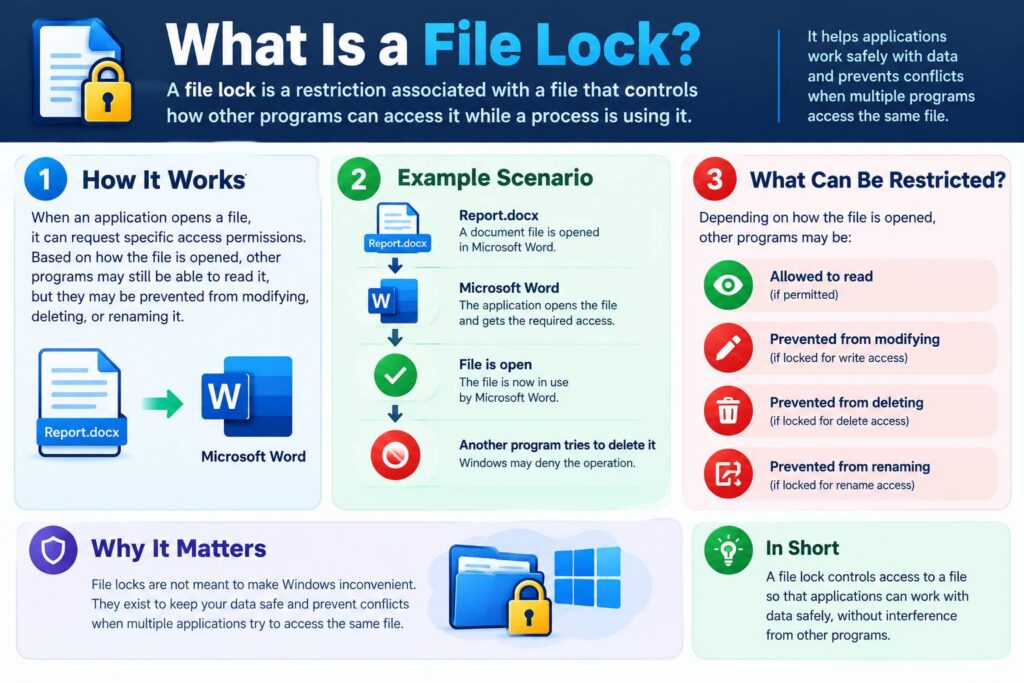
A file lock is a restriction associated with a file that controls how other programs can access it while a process is using it.
When an application opens a file, it can request specific access permissions. Depending on how the file was opened, other programs may still be able to read it, but they may be prevented from modifying, deleting, or renaming it.
For example, imagine that Microsoft Word has opened a document:
Report.docx
      ↓
Microsoft Word
      ↓
File is open
      ↓
Another program tries to delete it
      ↓
Windows may deny the operation
The purpose is not to make Windows inconvenient. File access rules help applications safely work with data that is currently being used.
This is the basic idea behind Windows file locking explained.
Why Does Windows Say “File Is Being Used by Another Program”?
The message “file is being used by another program” generally means that another process currently has the file open in a way that conflicts with the operation you are trying to perform.
For example, you might attempt to:
- Delete a file
- Rename a file
- Move a file
- Replace a file
- Modify a file
- Save changes over an existing file
- Change certain file attributes
Windows may block the operation if another process has an incompatible handle open.
Importantly, the program using the file does not always have to be visible on your desktop.
A background process can also have a file open.
What Is a File Handle?
To understand file locking more precisely, it helps to understand file handles.
When a Windows application opens a file, the operating system provides the application with a reference called a handle.
The application uses this handle to perform operations such as reading and writing.
For example:
Application
    ↓
Open file
    ↓
Windows creates file handle
    ↓
Application reads/writes file
    ↓
Application closes handle
As long as the relevant handle remains open, Windows knows that a process is accessing the file.
The permissions requested when the file is opened can determine what other processes are allowed to do.
File Locks Are Not Always the Same as Permissions
A common mistake is to assume that a locked file means you do not have permission to access it.
These are different concepts.
Permissions determine what a user or process is generally allowed to do with a file.
File sharing and locking behavior determines whether an operation can be performed while another process has the file open.
For example, you might have full permission to delete a file but still be unable to delete it while another application has opened it without allowing deletion.
This distinction is important when troubleshooting why can’t I modify a file problems.
A File Can Be Locked by a Background Process
One of the most confusing situations occurs when you cannot identify which program is using the file.
You may have already closed:
- Microsoft Word
- Excel
- Photoshop
- VLC
- Notepad
- Your web browser
- File Explorer
Yet Windows continues to report that the file is being used.
This can happen because a background process still has the file open.
Examples include:
- Antivirus software
- Cloud synchronization applications
- Backup programs
- Search indexing services
- Media thumbnail generators
- File preview components
- Compression utilities
- Database applications
- Development tools
- Automated scripts
For example, an antivirus application may temporarily open a newly downloaded file to scan it.
A cloud synchronization application may also access a file while checking whether it needs to upload changes.
File Explorer Can Sometimes Be Involved
Windows File Explorer itself can interact with files in several ways.
For example, Explorer may generate thumbnails or preview information for certain file types.
If a file is displayed in a preview pane or is being processed by a shell extension, another component associated with Explorer may have the file open.
This is one reason closing the folder or disabling the Preview pane can sometimes resolve a file access problem.
However, not every “file is being used” error is caused by File Explorer.
Why Can’t I Modify a File?
There are several possible reasons why Windows prevents you from modifying a file.
1. Another Application Has It Open
This is the most straightforward explanation.
A program may currently be reading or writing the file.
For example:
video.mp4
    ↓
VLC Media Player
    ↓
File is being read
    ↓
You try to rename/delete it
Depending on the access mode used by VLC and Windows, the operation may be denied.
2. A Background Process Has an Open Handle
You may not see the application, but its process can still be running.
This commonly happens after an application crashes or fails to close a file handle properly.
3. Cloud Synchronization Is Processing the File
Applications that synchronize files between your computer and cloud storage may temporarily access files.
If synchronization is occurring at the same time you attempt to move or modify a file, you may encounter a conflict.
4. Antivirus or Security Software Is Scanning It
Security software can inspect files when they are created, downloaded, modified, or executed.
Usually these locks are temporary.
Waiting a few seconds and trying again may resolve the problem.
5. The File Is Open in a Terminal or Script
A command-line program or script can also keep a file open.
For example, a logging application might continuously write to:
application.logTrying to replace that file while the logging process is running may fail.
How to Find Which Program Is Locking a File
If Windows repeatedly reports that a file is being used, you can investigate which process has the file open.
Use Task Manager
Task Manager can help identify applications and processes that may be associated with the file.
You can close the application if you recognize it and no important work will be lost.
However, Task Manager does not provide the most direct way to identify every file handle.
Use Resource Monitor
Windows includes Resource Monitor, which provides more detailed information about processes and handles.
You can search for a filename under the CPU-related file search section to identify processes that are accessing it.
This can be useful when a file is locked by a background process that is not obvious.
Use Process Explorer
Microsoft’s Sysinternals tools include utilities designed for detailed Windows process investigation.
Process Explorer can be particularly useful when you need to determine which process has a particular file or directory handle open.
This is often much more informative than repeatedly closing random applications.
Should You Force-Close the Process?
Not always.
If a process is actively writing to a file, terminating it can cause problems.
For example, imagine a program writing data to:
database.dbIf you suddenly terminate the program while it is updating the database, you could potentially leave the application data in an inconsistent state.
Similarly, terminating a document editor while it is saving a file could result in lost or incomplete data.
Therefore, the safest approach is usually:
- Identify the application using the file.
- Save any important work.
- Close the application normally.
- Wait briefly for background processing to finish.
- Try the operation again.
Only use forceful termination when you understand what the process is doing and accept the potential consequences.
What Happens When a Program Crashes?
A program crash can sometimes leave resources in an unexpected state.
However, Windows generally cleans up handles when a process terminates.
This means that if the application has completely exited, its file handles should normally be released.
If the file remains locked, another process may be responsible.
For example:
Word.exe → closed
       ↓
Antivirus → still scanning
       ↓
Cloud sync → checking file
       ↓
File remains unavailable
This is why simply restarting the application that originally opened the file does not always solve the problem.
File Locking and File Corruption
File locking is actually related to data integrity.
Imagine two applications modifying the same file simultaneously without any coordination.
One application could overwrite information while another application is reading or modifying it.
The result could be inconsistent or corrupted data.
File access controls help applications coordinate these operations.
However, file locks do not guarantee that a file can never become corrupted.
Corruption can still occur because of:
- Hardware failures
- Interrupted writes
- Software bugs
- Power loss
- File system problems
- Faulty storage
- Network interruptions
- Application crashes
File locking is one part of safe file handling, not a complete corruption-prevention mechanism.
Network Files Can Behave Differently
Files stored on network shares can introduce additional complexity.
A file may be open on another computer rather than your own.
For example:
Your PC
   ↓
Network Share
   ↓
Shared Document
   ↑
Office PC has file open
You may therefore receive a message that the file is being used even though no local application appears to be using it.
Network protocols and server-side file-sharing mechanisms manage these connections.
This is particularly important in offices where multiple users access shared documents.
How to Avoid File Lock Problems
You cannot eliminate file locking completely, and you should not try to. It is an important part of safe file access.
However, you can reduce unnecessary conflicts by:
- Closing files when finished
- Closing applications normally
- Avoiding simultaneous editing when possible
- Allowing cloud synchronization to finish
- Waiting for antivirus scans to complete
- Avoiding force-closing applications during file writes
- Restarting Windows when a persistent lock cannot be identified
- Keeping important files backed up
For frequently used files, understanding which application owns or accesses them can save considerable troubleshooting time.
Final Thoughts
A file lock is a mechanism that helps Windows and applications coordinate access to files. When you see “file is being used by another program,” it usually means another process has the file open in a way that prevents the operation you are attempting.
The process may be obvious, such as Microsoft Word or VLC, or it may be a background service such as antivirus software, cloud synchronization, indexing, or a script.
The key point is that why can’t I modify a file is not always a permissions problem. File permissions, open handles, sharing modes, and background processes are separate parts of Windows file management.
Once you understand Windows file locking explained, these messages become less mysterious. Instead of repeatedly trying to delete or rename the file, you can identify the process using it, close it safely, and then perform the required operation.
Also Read:
- What Is a Sparse File? How Computers Store Large Files Efficiently
- Before You Close Incognito Mode: What You Should Know About Chrome DNS Cache
- How Netflix Delivers Video: What Happens When You Press Play?
- How to Find Large Files Taking Up Disk Space in Windows
- What Is Digital Forensics? How Investigators Trace and Reconstruct a Cyberattack
- Agentic AI Under Attack: How Hackers Can Exploit AI Agents
- What Is a MAC Address?
- How Firewalls Stop Cyberattacks
- Virus vs Worm vs Trojan vs Ransomware: What Is the Difference?
- Why Does My PC Take So Long to Boot? 10 Common Causes and Fixes