
Running out of storage space on your Windows PC can happen surprisingly quickly. A few large videos, ISO files, game installations, old backups, or files sitting in the Downloads folder can consume dozens of gigabytes without you noticing.
When the C: drive becomes nearly full, Windows may also become less responsive. Updates can fail, applications may have trouble working, and you may see warnings about low disk space.
The good news is that you don’t always need to delete lots of small files. A better approach is to find large files taking up disk space and decide which ones you actually need.
Windows provides several ways to find large files, including File Explorer and Storage settings. You can also use a disk-space analyzer such as WinDirStat when you want a visual view of everything stored on a drive.
Here are the easiest ways to find large files on a Windows PC.
Why Should You Find Large Files?
Large files are often the biggest reason a drive suddenly runs out of space.
A single video can be several gigabytes. Game files, virtual machines, Windows ISO files, backups, and compressed archives can be even larger.
The problem is that these files may be stored in different folders, making them difficult to find manually.
Instead of opening folders one by one, you can search for files above a particular size.
For example, you can search for files larger than 100 MB, 1 GB, or even 5 GB. Once you find them, you can decide whether to keep, move, archive, or delete them.
This is a simple way to free up disk space on Windows 11 without randomly deleting files.
Method 1: Find Large Files Using File Explorer
The easiest way to search for large files is through Windows File Explorer.
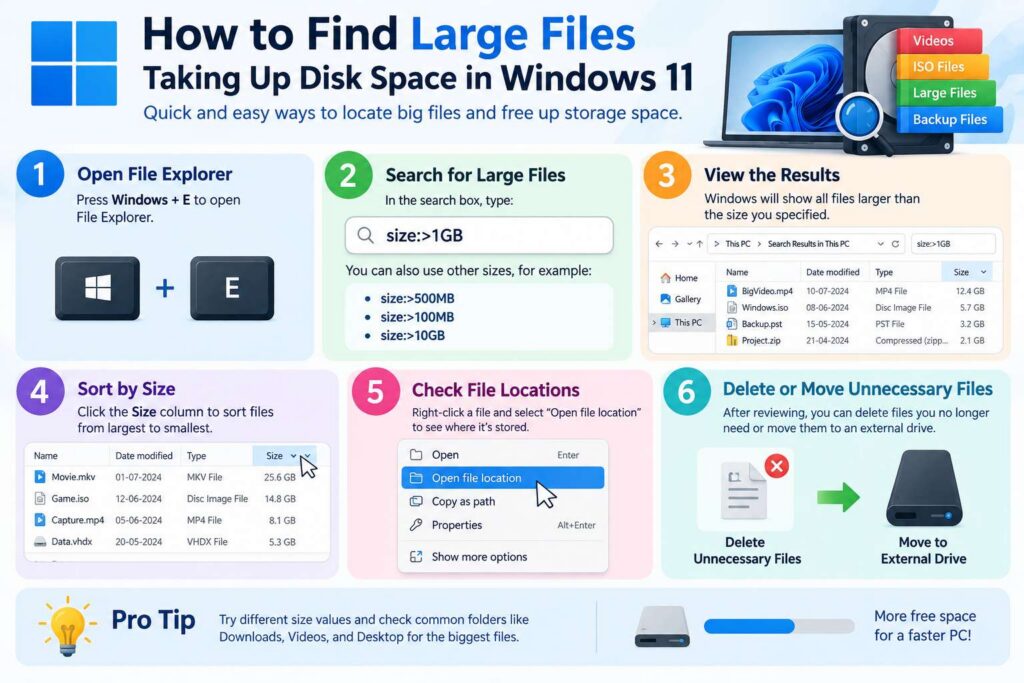
First, press Windows + E to open File Explorer.
Go to the drive you want to examine. If you’re trying to free space on your main system drive, select Local Disk (C:).
Click the search box in the upper-right corner and enter:
size:>100MBWindows will search for files larger than 100 MB.
If you want to find much larger files, try:
size:>1GBThis can quickly show files that are consuming significant storage space.
After the search finishes, you can sort the results by Size so that the largest files appear first.
This is one of the simplest answers to the question how to find large files on Windows 11.
Search for Files Larger Than 1 GB
If your drive is almost full, searching for files larger than 1 GB is often a good starting point.
Use:
size:>1GBYou may find large videos, virtual machine files, disk images, installers, archives, or other personal files.
You can then check each file before deleting it.
Remember that a large file isn’t necessarily an unnecessary file. Some large files are essential to Windows or applications, so don’t delete something simply because it appears in the search results.
Method 2: Use Windows Storage Settings
Windows also has a built-in storage management page that provides a useful overview of what’s consuming your drive space.
On Windows 11, open:
Settings > System > Storage
Windows will analyze your storage and display categories such as:
- Installed apps
- Temporary files
- Documents
- Pictures
- Videos
- Downloads
- Other files
This makes it easier to understand where your storage is going.
You can select categories to see more details and identify files or applications that you no longer need.
The Temporary files section can also help you remove unnecessary temporary data.
If you’re trying to free up space on the C drive, Storage settings should be one of the first places you check.
Check the Downloads Folder
The Downloads folder deserves special attention because files often remain there long after they have been used.
You might have downloaded:
- Software installers
- ZIP files
- Videos
- PDF documents
- ISO files
- Images
- Large project files
Over time, these can consume many gigabytes.
Open your Downloads folder and sort the files by Size. Look at the largest files first.
If you are certain that a file is no longer needed, you can delete it.
However, check important files carefully before removing them. Some installers or archives may still be useful later.
Method 3: Use WinDirStat to See What Is Using Space
If you want a more visual way to understand your disk usage, WinDirStat is a popular option.
Instead of simply showing a list of files, it creates a visual map of the files and folders on your drive.
Large blocks represent files or groups of files consuming more storage. This makes it easier to spot unusually large folders and files.
After installing WinDirStat, select the drive you want to analyze and allow it to scan the storage.
Once the scan is complete, you’ll see a visual representation of the disk.
You can click individual areas to identify the files responsible for taking up space.
This can be particularly useful when you don’t know what is taking up space on your C drive.
What Large Files Should You Check First?
Once you’ve found large files, don’t immediately delete everything.
Start by checking common storage-heavy categories.
Videos and Screen Recordings
Video files can become very large, particularly recordings made at high resolution.
Old screen recordings, downloaded movies, and unused video projects are worth checking.
ISO Files
Windows installation images and other ISO files can consume several gigabytes.
If you created an ISO for a one-time installation and no longer need it, you may be able to remove it.
ZIP and RAR Archives
Compressed archives can contain large collections of files. Old backups and downloaded software packages are common examples.
Before deleting an archive, make sure you don’t still need the files inside it.
Game Files
Modern PC games can occupy tens or even hundreds of gigabytes.
If you no longer play a game, uninstalling it through Windows or the relevant game launcher is safer than manually deleting its folders.
Virtual Machine Files
Virtual machines can use large disk-image files. If you have used VMware, VirtualBox, Hyper-V, or similar software, check for old virtual machines that you no longer use.
Don’t manually delete an active virtual machine’s files unless you understand exactly what you’re removing.
Be Careful When Deleting Large Files
Finding large files is easy. Knowing which large files are safe to delete is more important.
Avoid deleting files from Windows system folders simply because they are large.
Be particularly careful with:
- Windows folders
- Program Files
- Program Files (x86)
- System folders
- Application data folders
- Unknown system files
Deleting important system files can cause applications or Windows itself to stop working properly.
If you want to remove an application, use Settings > Apps > Installed apps and uninstall it normally.
For personal files, such as videos or old documents, you can usually move them to another drive or external storage instead of deleting them.
Move Large Files Instead of Deleting Them
You don’t always have to delete large files to free up space.
If you have important videos, photos, documents, or project files, consider moving them to another internal drive, external hard drive, or other suitable storage.
For example, moving a 20 GB video archive from your C: drive to another storage drive immediately frees that space without permanently removing the files.
This is especially useful when your computer has a smaller SSD for Windows and a larger secondary drive for personal files.
Empty the Recycle Bin
Remember that deleting files normally doesn’t immediately remove them from the storage device.
Windows usually moves deleted files to the Recycle Bin.
If you have deleted several large files, those files may continue occupying space until the Recycle Bin is emptied.
Right-click the Recycle Bin and select Empty Recycle Bin when you are certain you don’t need anything inside it.
This can recover a surprising amount of storage space.
How to Keep Your Drive From Filling Up
Finding large files should not be something you only do when Windows displays a low-storage warning.
Make it a habit to check your storage occasionally.
Remove old installers, unnecessary downloads, unused applications, and files you no longer need. Move large personal files away from the system drive when appropriate.
Windows also includes Storage Sense, which can automatically help remove certain unnecessary files.
Keeping reasonable free space on the C: drive gives Windows room for updates, temporary files, caching, and normal system operations.
Final Thoughts
Knowing how to find large files taking up disk space can make it much easier to manage a Windows PC.
Start with File Explorer if you want a quick search. Use searches such as size:>100MB or size:>1GB to locate large files, then sort the results by size.
Windows Storage settings provide another useful overview, while tools such as WinDirStat can show exactly where your storage is being consumed.
Most importantly, don’t delete files simply because they are large. Check what each file is, where it came from, and whether you still need it.
With a little regular storage cleanup, you can prevent your C: drive from becoming completely full and keep your Windows PC easier to manage.
Also Read:
- How Netflix Delivers Video: What Happens When You Press Play?
- What Is Digital Forensics? How Investigators Trace and Reconstruct a Cyberattack
- Agentic AI Under Attack: How Hackers Can Exploit AI Agents
- What Is a MAC Address?
- How Firewalls Stop Cyberattacks
- Virus vs Worm vs Trojan vs Ransomware: What Is the Difference?
- Why Does My PC Take So Long to Boot? 10 Common Causes and Fixes