

Google Chrome’s Incognito mode is useful when you don’t want Chrome to keep a normal record of the websites you visit on your device. However, many people misunderstand what Incognito actually does.
Incognito mode is mainly designed to limit what Chrome stores locally after the private browsing session ends. It does not make you completely anonymous, and it does not automatically hide your activity from websites, your internet service provider, employer, school, or network administrator. Google also explains that websites can still collect information about your activity while you are using Incognito.
There is also another piece of information worth understanding: DNS caching.
Chrome and your operating system can temporarily keep DNS information to make website connections faster. In some situations, old or incorrect DNS information can contribute to website loading or connection problems. Clearing a DNS or host cache can sometimes help when a website suddenly refuses to load or points to an outdated address.
This article explains how to clear Chrome DNS cache, what Incognito mode really does, and why clearing DNS cache is sometimes useful.
What Is Incognito Mode in Chrome?
Incognito mode is Chrome’s private browsing mode.
When you open an Incognito window, Chrome starts a separate browsing session. When you close all Incognito windows, Chrome removes the browsing information associated with that session from the device, including the browsing history and temporary site data created during the session.
This can be useful when you are using a shared computer, testing a website without your normal browsing session, or simply don’t want a particular browsing session saved in your regular Chrome history.
However, Incognito does not mean that your internet activity becomes invisible.
Websites can still see activity from visitors, and organizations managing a network may be able to observe network activity. Google also points out that downloads and bookmarks are retained even after an Incognito session is closed.
So, Incognito mode is not the same thing as complete online anonymity.
What Is DNS Cache?
Before understanding how to clear Chrome DNS cache, it helps to understand DNS.
DNS stands for Domain Name System. It helps translate human-readable website names into IP addresses that computers can use to connect to servers.
For example, when you enter a website address into Chrome, your computer needs to determine where that website is located on the internet.
DNS information can be cached temporarily so that repeated requests don’t always have to perform the complete lookup again.
Caching can make connections faster, but occasionally an old DNS entry or connection state can cause problems.
You might see situations where:
- A website doesn’t load correctly
- A website points to an old server
- You recently changed DNS records
- A domain has recently moved to another server
- Chrome shows a DNS-related connection error
- One browser behaves differently from another
Clearing the relevant cache can be one troubleshooting step.
Why Would You Clear Chrome’s DNS Cache?
You generally don’t need to clear DNS cache every time you browse the web.
It is mainly useful when troubleshooting a specific connection problem.
For example, suppose a website recently changed its server. Your device or browser may temporarily have older DNS information available. Clearing the cached information can force a fresh lookup.
Similarly, if Chrome is experiencing a DNS-related problem while other websites or applications are working normally, clearing its host cache may be worth trying.
Google Chrome community guidance continues to reference chrome://net-internals/#dns and the Clear host cache option for this type of troubleshooting.
How to Clear Chrome DNS Cache
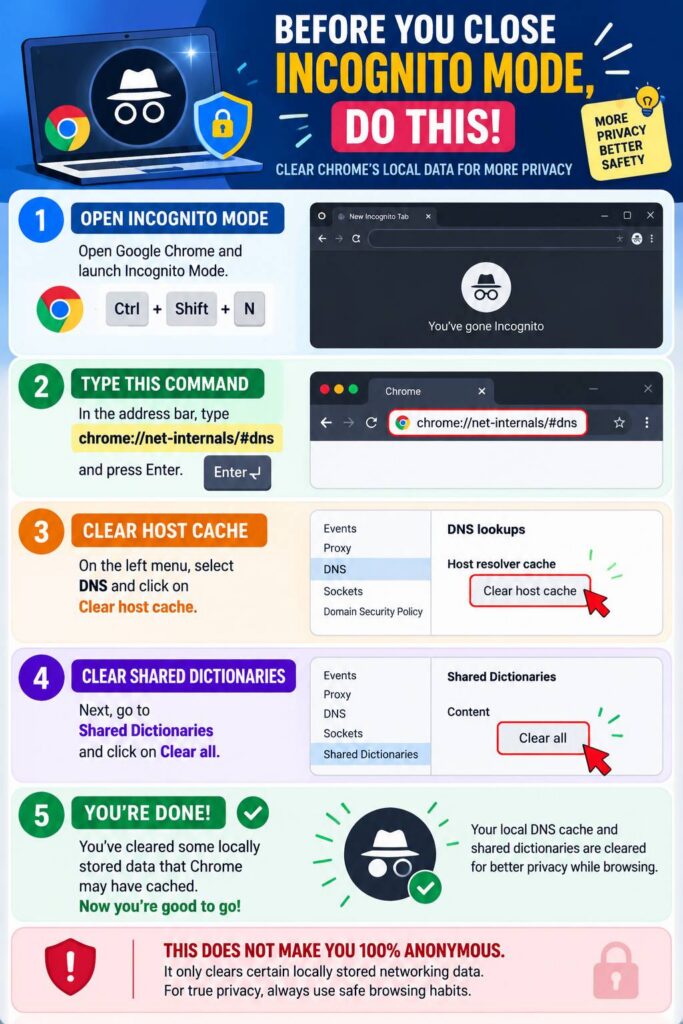
If your Chrome version provides the internal DNS page shown in the infographic, you can try the following steps.
First, open Google Chrome and open an Incognito window if you want to test the connection separately from your normal browsing session.
Then enter this address into Chrome’s address bar:
chrome://net-internals/#dnsPress Enter.
If the page is available in your version of Chrome, you should see the DNS section and an option labeled Clear host cache.
Click Clear host cache.
This clears Chrome’s cached host information. It does not delete your normal Chrome browsing history, saved passwords, bookmarks, or personal files.
After clearing the host cache, try opening the website again.
Important Note About Chrome Versions
Chrome’s internal diagnostic pages can change over time. If chrome://net-internals/#dns does not work or the interface shown in the infographic is missing, don’t assume that something is wrong with your computer.
Chrome’s internal tools and troubleshooting interfaces can change between versions.
In that situation, you can use other DNS troubleshooting methods, such as clearing the Windows DNS cache with the Command Prompt.
How to Flush DNS Cache in Windows
If you’re using Windows and experiencing DNS-related website problems, you can also clear the Windows DNS resolver cache.
Open Command Prompt as Administrator.
Then run:
ipconfig /flushdnsPress Enter.
Windows should report that the DNS Resolver Cache was successfully flushed.
This is different from clearing Chrome’s host cache. One affects Windows’ DNS resolver cache, while the other relates to Chrome’s own cached host information.
In some troubleshooting situations, users may try both.
What About Chrome Shared Dictionaries?
The infographic also shows an option for clearing Shared Dictionaries.
This is separate from DNS caching.
You should not assume that clearing every item on Chrome’s internal pages will improve privacy or browsing speed. Internal diagnostic pages contain different types of browser information, and each option has a different purpose.
If your goal is specifically to troubleshoot a DNS or website connection problem, focus on the relevant DNS and network troubleshooting options rather than clearing unrelated information.
Does Clearing DNS Cache Delete Browsing History?
No.
Clearing a DNS or host cache is not the same as deleting your Chrome browsing history.
Your browsing history is managed separately through Chrome’s browsing-data controls.
Likewise, clearing a host cache does not delete:
- Bookmarks
- Saved passwords
- Downloaded files
- Chrome extensions
- Your Google Account
- Personal documents
- Normal browsing history
If your goal is to remove browsing history, use Chrome’s Delete browsing data feature instead.
Does Incognito Mode Hide DNS Information?
This is another common misunderstanding.
Opening an Incognito window does not make you completely invisible online.
Incognito primarily limits what Chrome saves locally from that private session. Google states that websites and organizations managing the network may still be able to observe activity.
Your internet service provider, workplace network, school network, or other network administrator may still have visibility into network activity depending on how the network is configured.
Therefore, Incognito mode should not be described as an anonymity tool.
It is better to think of it as a way to create a more private browsing session on your own device.
When Should You Clear DNS Cache?
You don’t need to clear DNS cache regularly.
Consider trying it when you are troubleshooting problems such as a website that recently changed servers, DNS-related errors, or a domain that appears to resolve incorrectly.
For example, if a website works on your phone using mobile data but fails on your computer’s Wi-Fi connection, the problem may involve DNS, network configuration, browser settings, or another part of the connection.
Clearing the cache is only one troubleshooting step. If it doesn’t solve the problem, you may need to investigate DNS settings, proxies, VPNs, firewall software, router configuration, or your internet connection.
What Should You Do If a Website Still Won’t Load?
If clearing the host cache doesn’t fix the problem, don’t keep clearing caches repeatedly.
Try a more systematic approach.
First, test another website. If other websites work, the issue may be related to the particular domain.
Next, try the website in another browser. You can also test it using an Incognito window.
Check whether a VPN, proxy, security application, or browser extension is affecting the connection.
On Windows, you can also run:
ipconfig /flushdnsIf the problem continues across multiple devices on the same network, restarting the router and checking its DNS configuration may also be useful.
Final Thoughts
Chrome’s Incognito mode and DNS caching are two different things, and understanding that difference can prevent a lot of confusion.
Incognito mode helps limit the information Chrome saves locally during a private browsing session, but it does not make you completely anonymous. Websites and network operators may still be able to observe activity.
DNS caching, meanwhile, is related to how domain names are resolved and connections are established. When a website has DNS problems or your browser appears to be using outdated host information, clearing the host cache can sometimes help.
If your Chrome version provides the internal DNS page, you can try:
chrome://net-internals/#dnsand select Clear host cache.
If that page isn’t available in your version, use Chrome’s current troubleshooting and privacy settings instead, and remember that browser troubleshooting pages can change over time.
The most important point is simple: clearing DNS cache is a troubleshooting technique, not a privacy or anonymity technique. Use Incognito when you want Chrome to limit locally stored browsing information, and use DNS cache clearing when you’re trying to troubleshoot a network or website-resolution problem.
Also Read:
- How Netflix Delivers Video: What Happens When You Press Play?
- How to Find Large Files Taking Up Disk Space in Windows
- What Is Digital Forensics? How Investigators Trace and Reconstruct a Cyberattack
- Agentic AI Under Attack: How Hackers Can Exploit AI Agents
- What Is a MAC Address?
- How Firewalls Stop Cyberattacks
- Virus vs Worm vs Trojan vs Ransomware: What Is the Difference?
- Why Does My PC Take So Long to Boot? 10 Common Causes and Fixes